

How to Use CF7 to any API for Agendor
Step 1: Create or Log in to Your Agendor Account
- Log in to your Agendor account or create a new one.
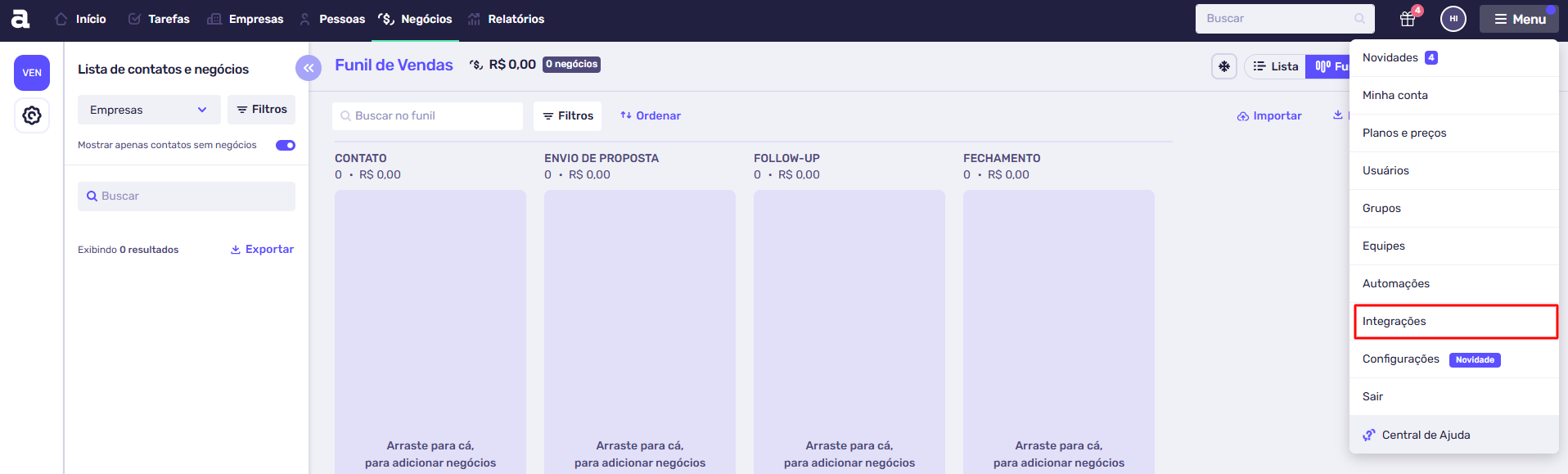
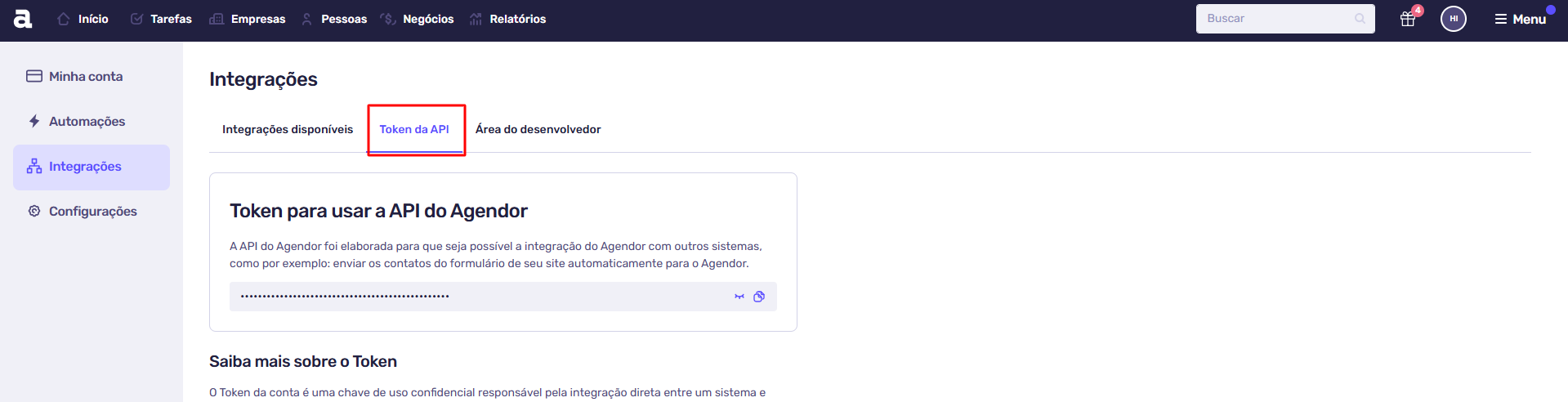
- Navigate to Menu > Integrations > Token to API.
- Generate a new API key
- Keep these keys handy — you’ll need them for the integration.
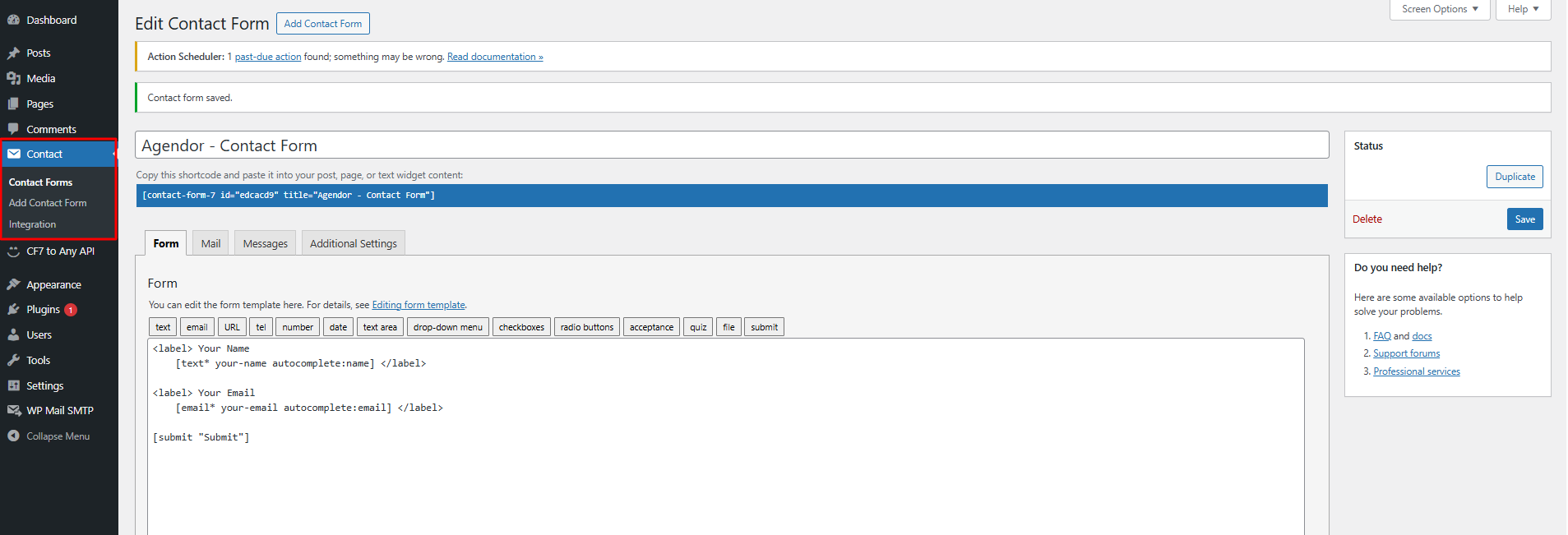
Step 2: Create New Contact Form & Name it as Agendor – Contact form
Step 3: Install Plugin Cf7 to Any API
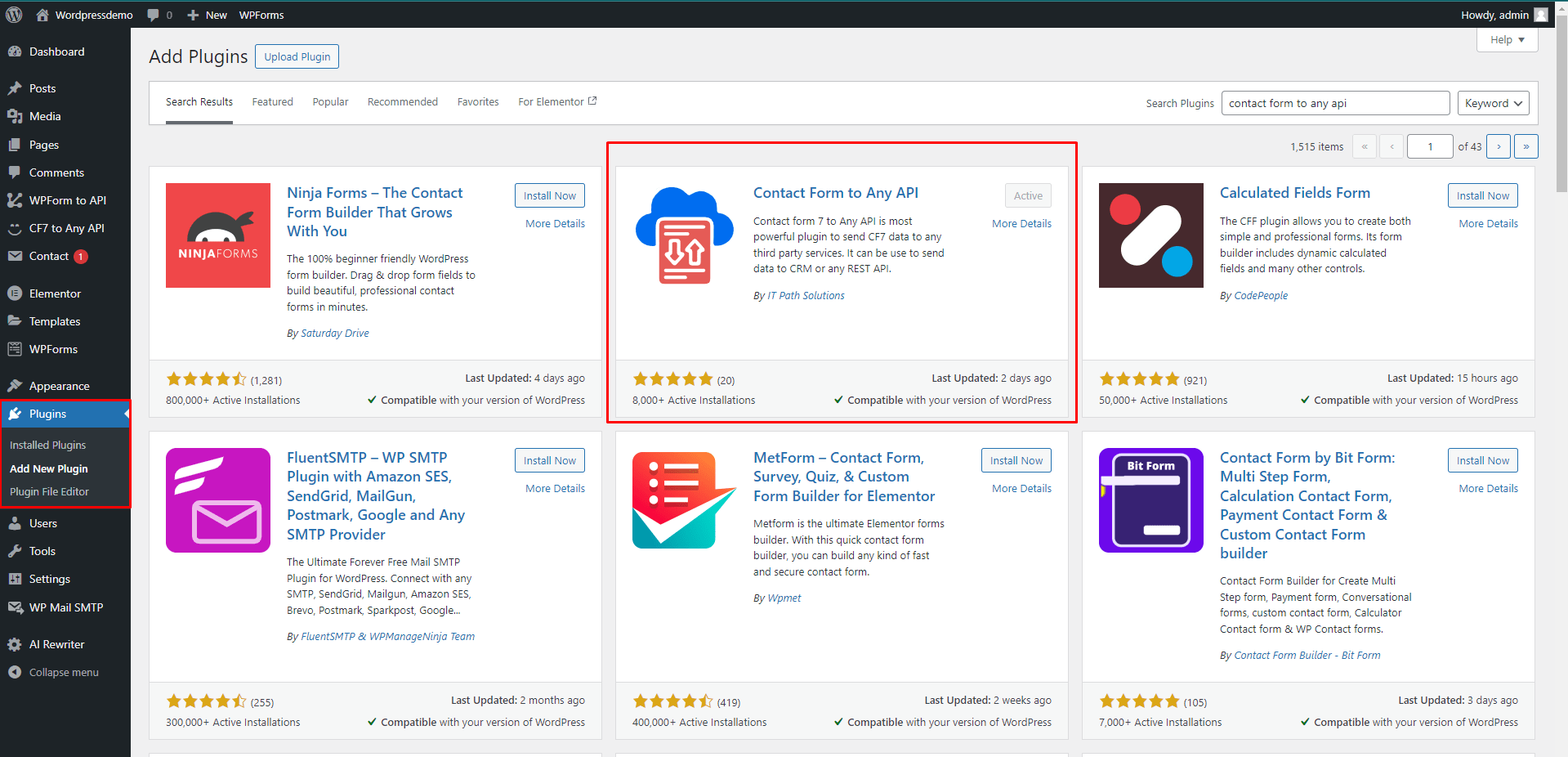
- Go to the Plugins Menu and click on Add new plugin.
- Enter in name of plugin Contact Form to Any API in search bar.
- Install and Activate the Plugin.
- Alternatively, you can download it from WordPress.org and upload it manually.
Step 4: CF7 to Any API Configuration
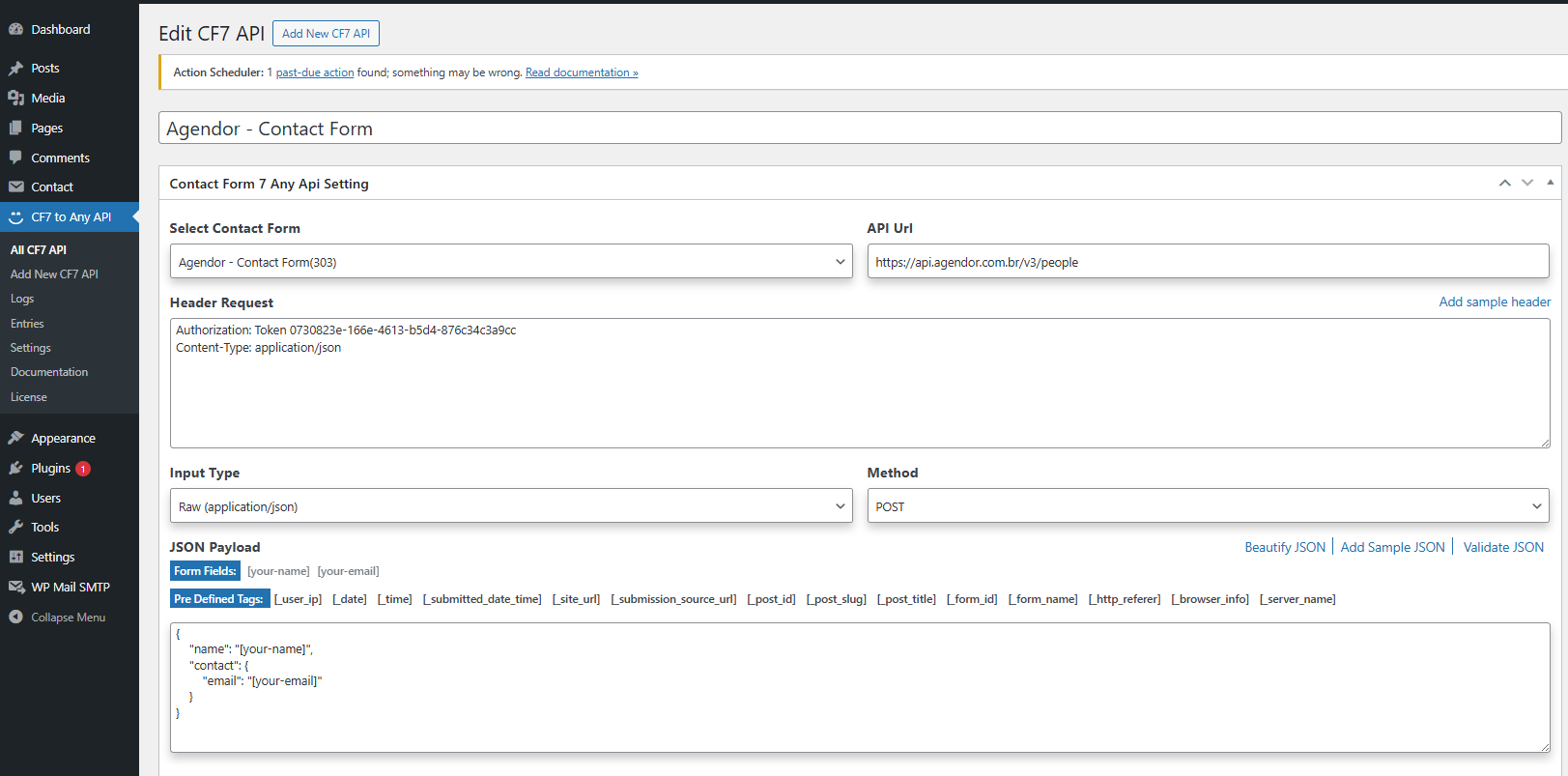
- Go to the Menu called CF7 to API Configuration.
- Click on Add New Cf7 to Any API.
- Select the Agendor- Contact form whose data you want to send to the API.
- Enter your Agendor API URL in the following format: https://api.agendor.com.br/v3/people
- Header Configuration Based on your API Documentation.
- Choose Input Type JSON / GET / POST
- Choose Method POST / GET
- Field Mapping: Match your CF7 form fields to the Agendor API fields (refer to the API docs for correct field names).
- Save the configuration.
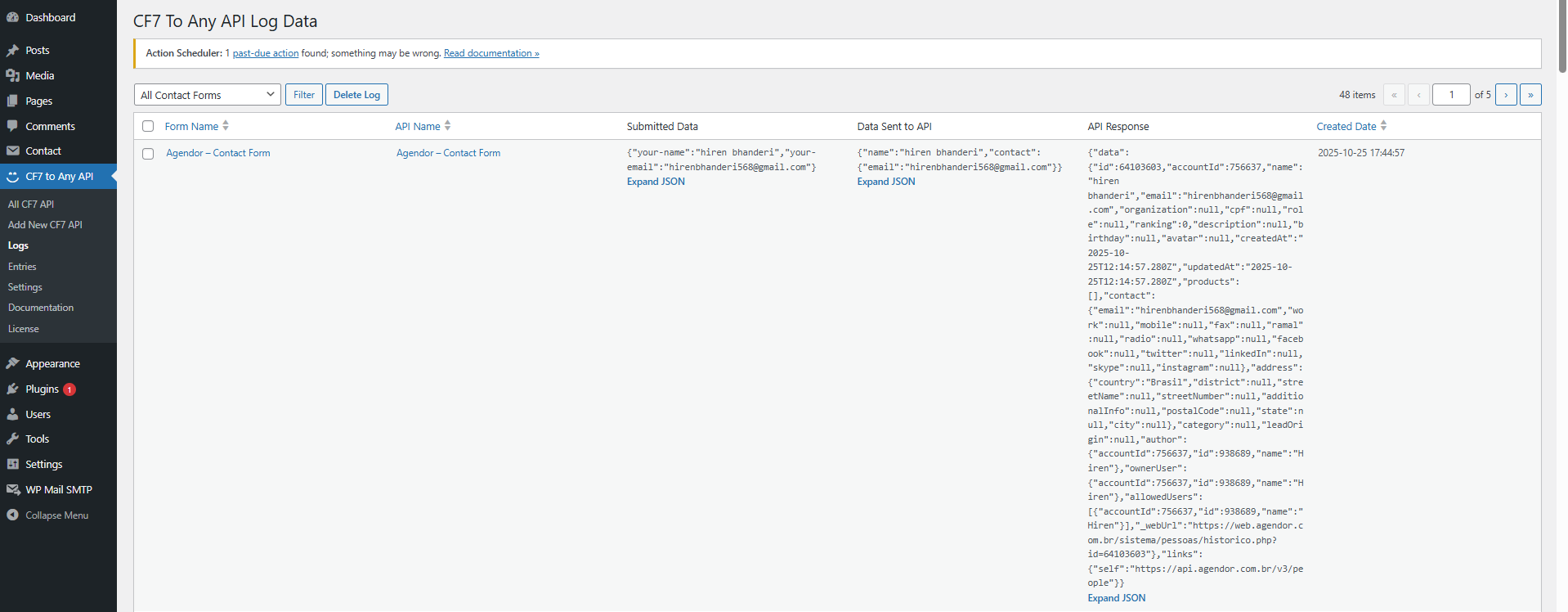
Step 5: Add your Agendor to Any Page & Submit the Form | API Logs
- After Form Submission check your API Logs.
- To check logs: Go to the Log Menu in the CF7 to Any API plugin.
- Review the request and response to ensure the data is successfully sent to Agendor.