


Add Form to Your Shopify Theme
Creating and customizing your form is only the first step. Once your form is ready, you need to add it to your Shopify store theme so that it is visible to your customers and can be used on your storefront.
The process has two parts: first, publish the form and copy its HTML code, then add the Contact Form to API app block to the required location in your Shopify theme and add the form code there.
Publish the Form and Copy the HTML Code
When you save a newly created form, it is saved as a draft. A draft form is not yet ready to be added to your storefront.
You need to publish the form to make it available for use in your Shopify theme. After publishing, the form’s HTML code is provided. This code identifies the form and is used by the app block to display the correct form on your store.
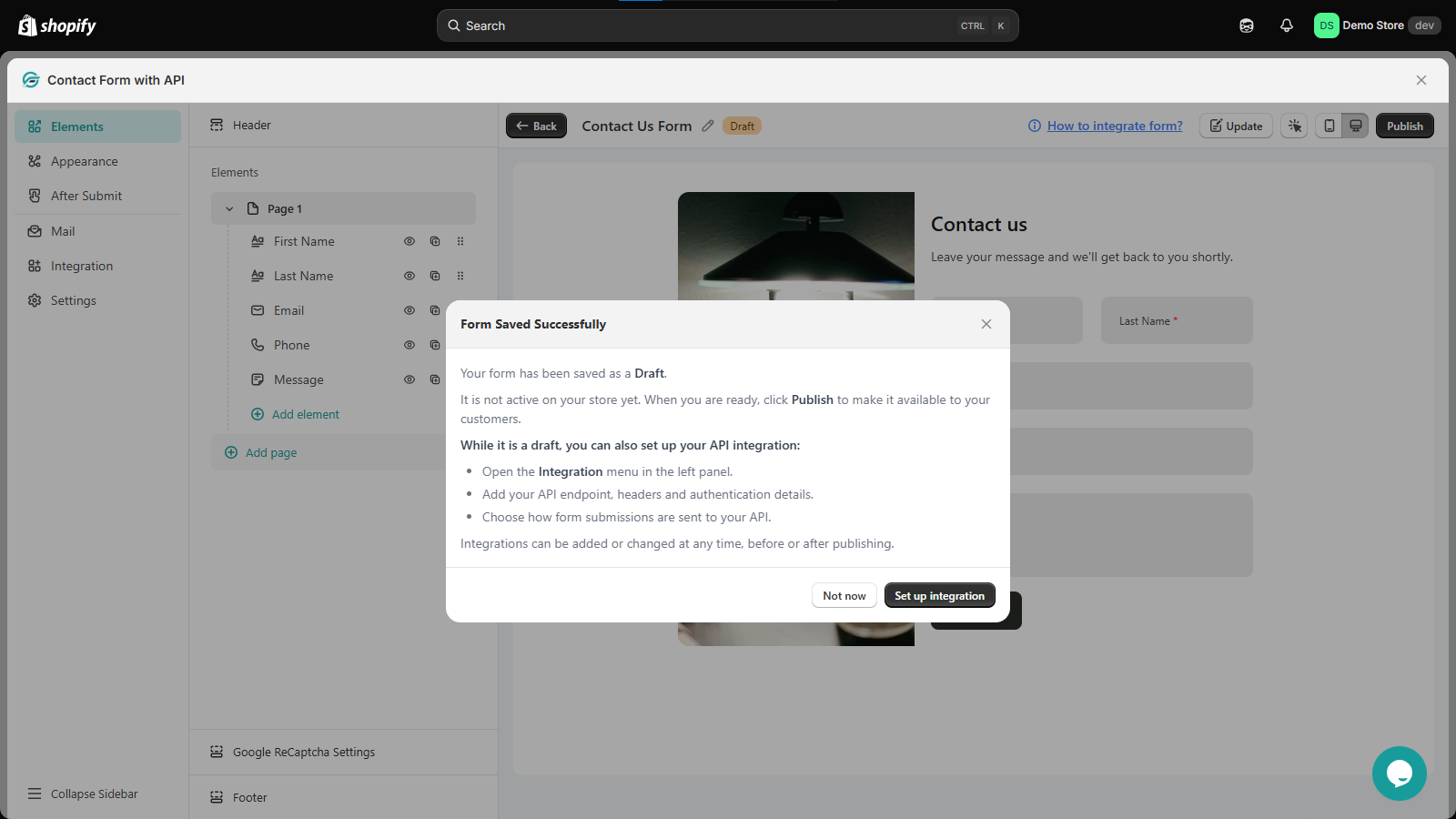
- Open the form you want to add to your store.
- Customize it based on your needs, and rename it so you know which form it is regarding.
- Click Publish.
- Once the form is published, locate the form’s HTML code from the Forms dashboard.
- Copy the HTML code. Keep it available while you add the form to your theme.
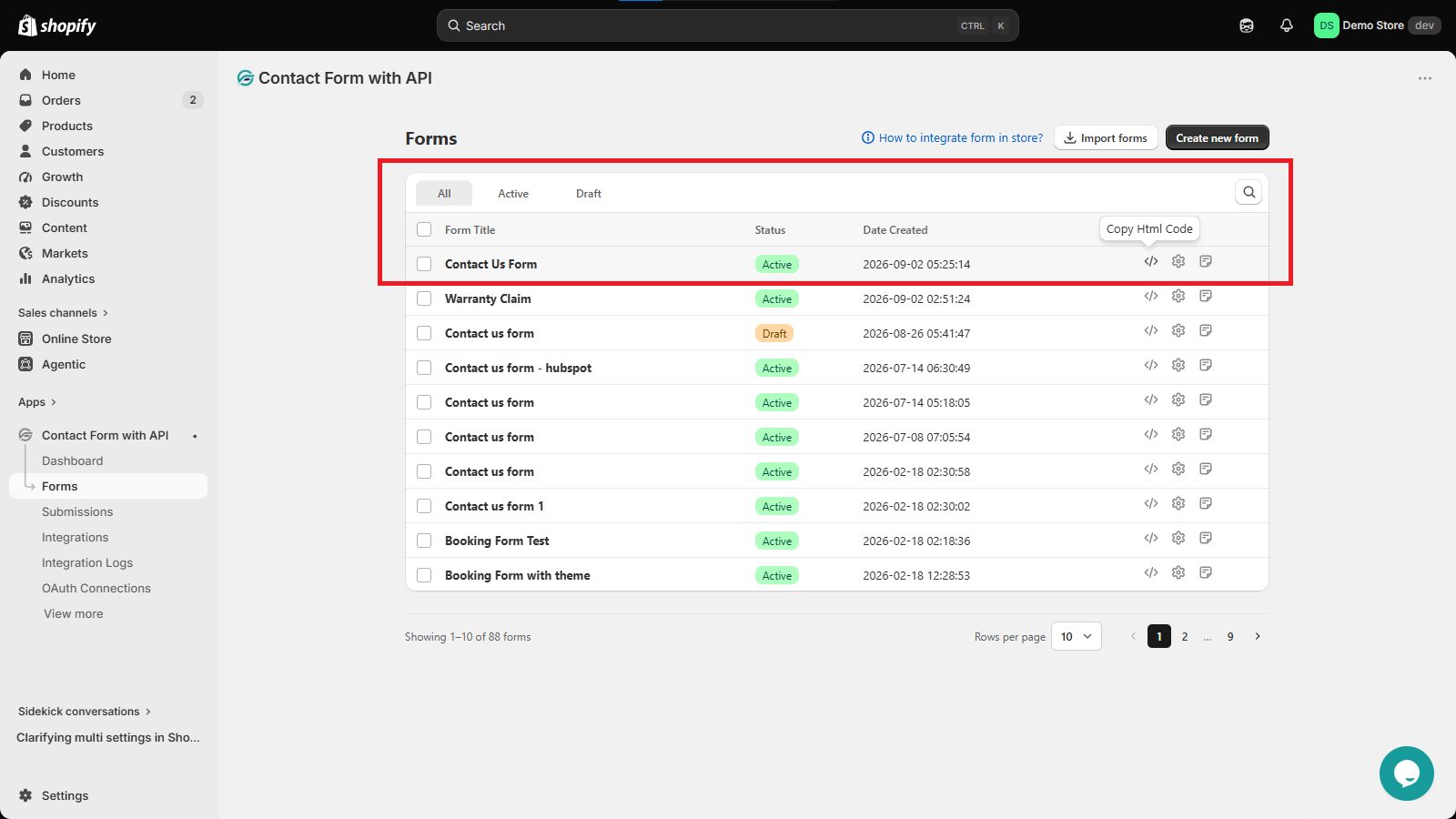
Add the Form Using the Theme Editor
After publishing the form, use Shopify’s theme editor to choose where you want the form to appear.
- In your Shopify admin, go to Online Store → Themes → Customize.
- Navigate to the page or template where you want to add the form.
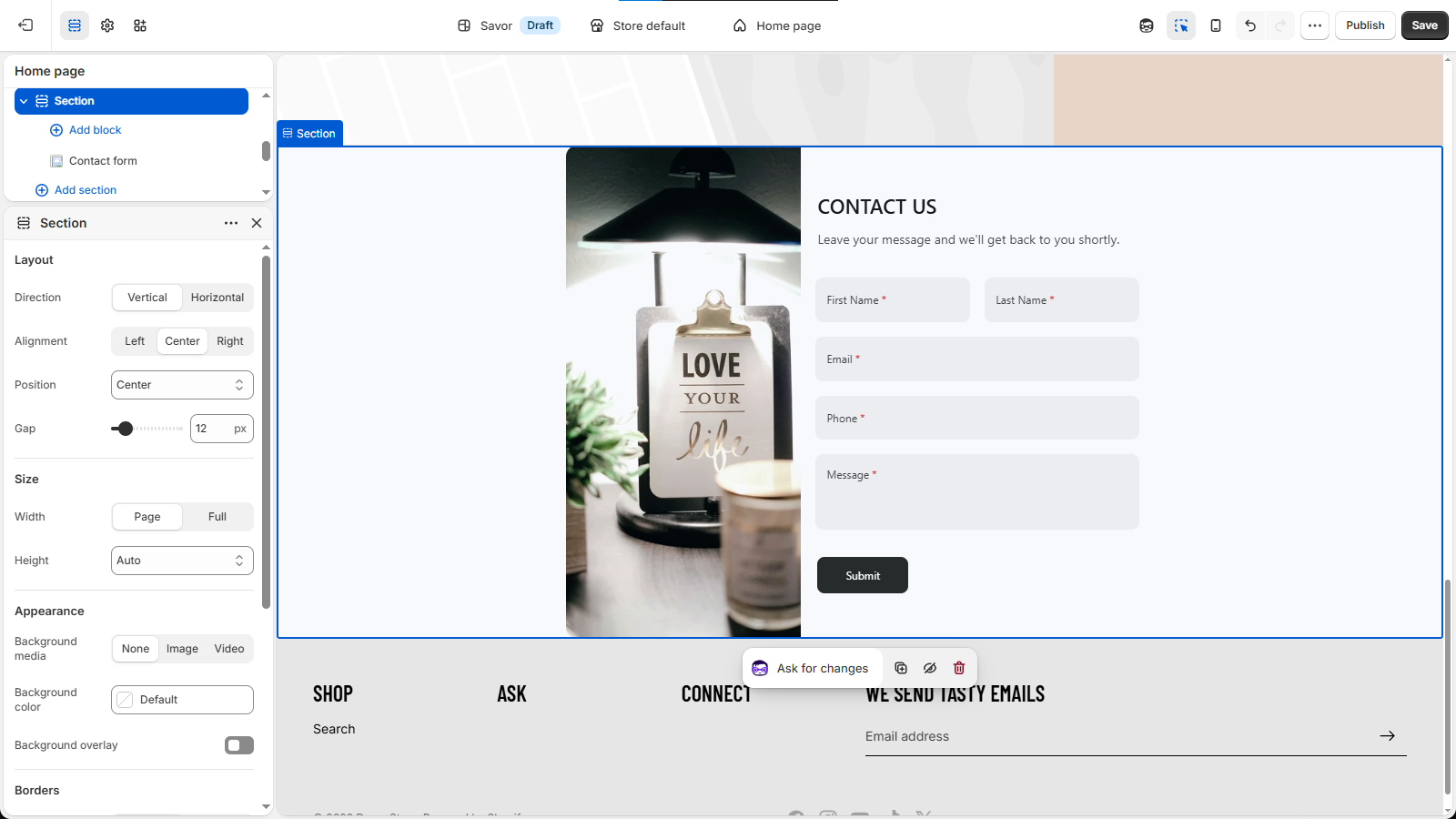
- Click Add block or Add section, depending on your theme.
- Select the Contact Form to API app block.
- Paste the HTML code you copied after publishing the form into the shortcode field.
- Customize the form layout using the options available in your theme.
- Click Save to apply the changes.
The app block uses the code you provided to load the selected form in the location where you added it.
Where You Can Add a Form
The exact locations available depend on your Shopify theme and where it supports app blocks. Common locations include:
- A standard page, such as a Contact Us page
- A product page
- A custom section supported by your theme
You can choose the location that best fits how you want customers to access the form.
Verify the Form on Your Store
After saving your theme changes, open the relevant storefront page and check that the form is displayed in the expected location. You can also submit a test entry to make sure the form is working correctly.